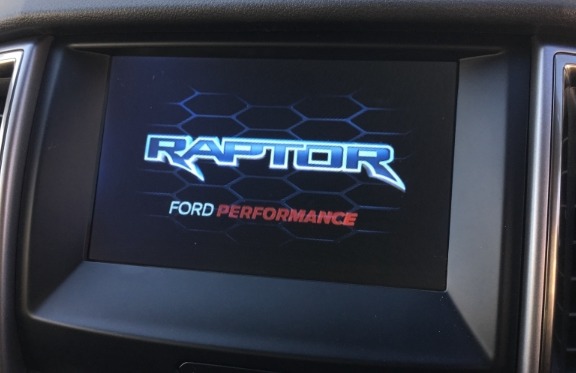

The Seat A/C and Heat Icons modification adds seat climate-control icons to the vehicle’s home screen.
This configuration is performed through the APIM (Accessory Protocol Interface Module) using FORScan and the As-Built Format.
After the configuration is written successfully, the vehicle’s home-screen interface can display the configured Seat A/C and Seat Heat icons, depending on the vehicle’s supported equipment and configuration.
The modification changes the APIM configuration to add seat climate-control icons to the vehicle’s home screen.
| Feature | Description |
|---|---|
| Seat A/C icon | Adds the configured seat A/C control icon to the home screen |
| Seat Heat icon | Adds the configured seat heat control icon to the home screen |
| Configuration method | APIM As-Built Format |
| Main module | APIM |
| Diagnostic software | FORScan |
The actual availability and behavior of these icons depend on the vehicle’s model, model year, APIM configuration, software version, installed seat equipment, and supported climate-control functions.
Before starting the procedure, prepare:
Because this procedure modifies the APIM configuration, save the original configuration before making any changes.
The general workflow is:
Connect → Select APIM → Save Original Configuration → Modify → Write → Check Vehicle
Connect the VCI interface to the vehicle and laptop.
Open FORScan and establish communication with the vehicle.
Allow FORScan to identify the vehicle and its available modules.
Before proceeding, make sure the connection between the laptop, VCI, and vehicle is stable.
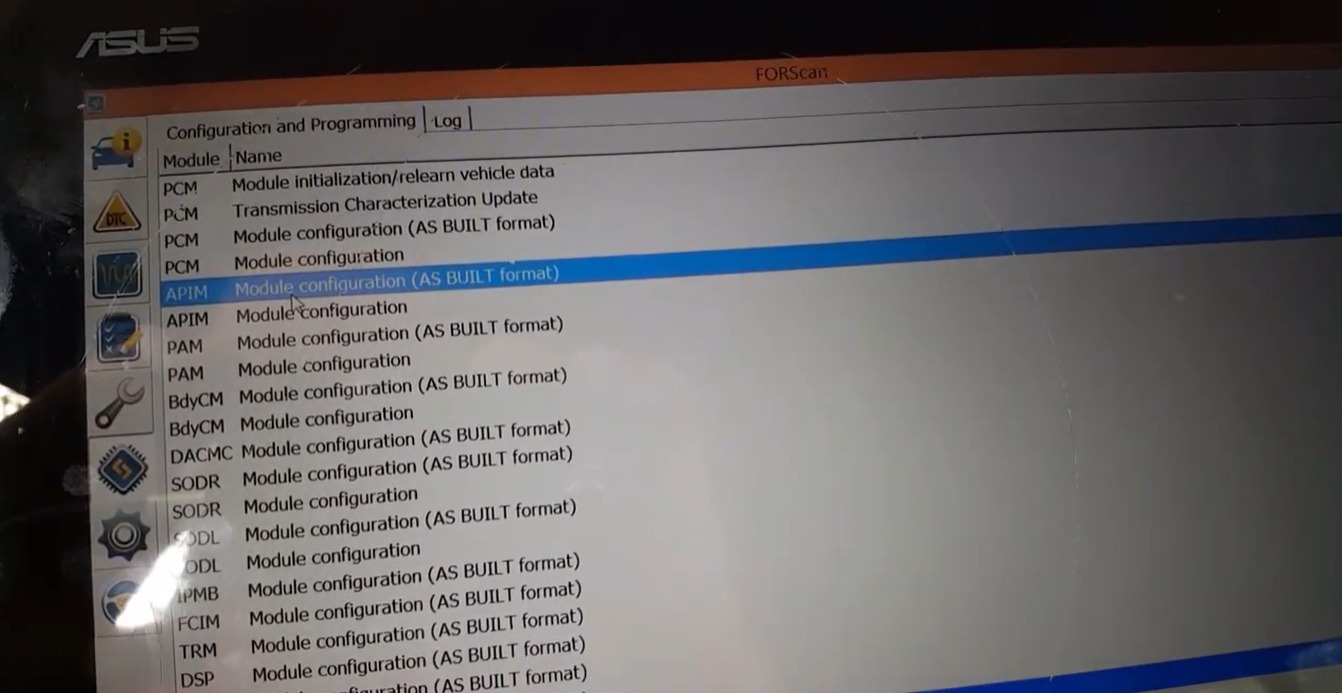
Open:
Configuration and Programming
Locate and select:
APIM – Accessory Protocol Interface Module
Then open the:
As-Built Format
configuration.
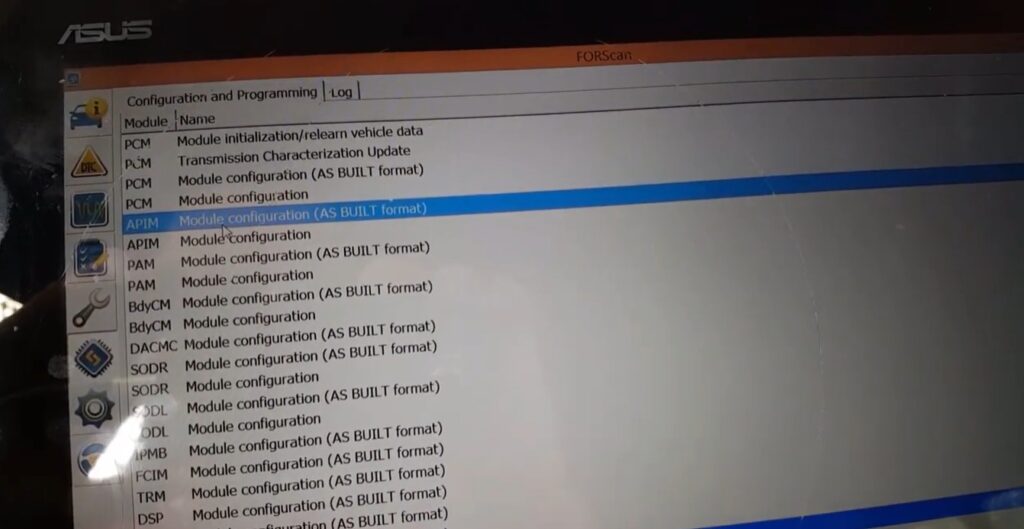
APIM As-Built Format
The APIM is the module used for this modification because the requested change affects the vehicle’s home-screen interface.
Locate the following APIM configuration address:
7D0-01-01
Modify the value according to the supplied coding reference.
Then select Write to program the updated configuration into the APIM.
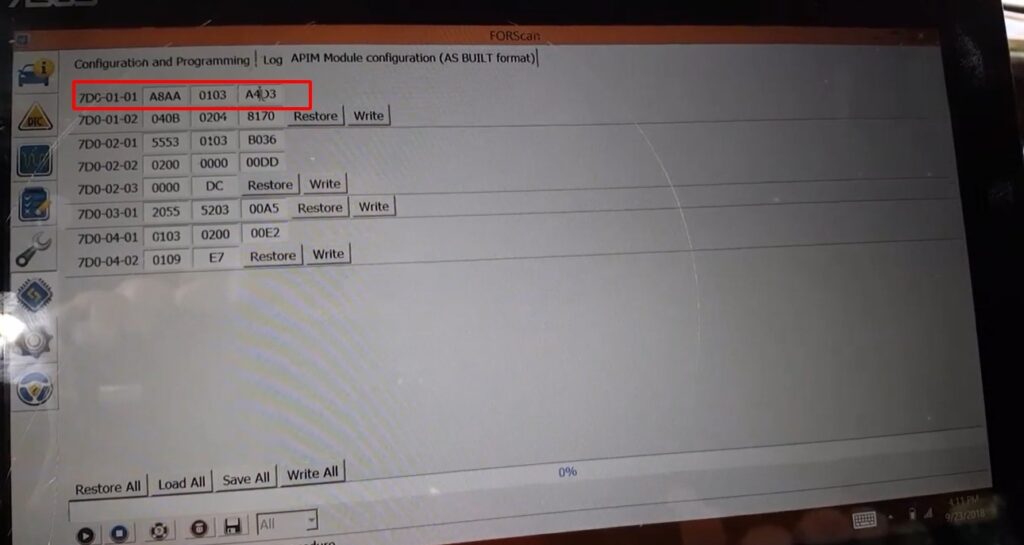
7D0-01-01 original configuration
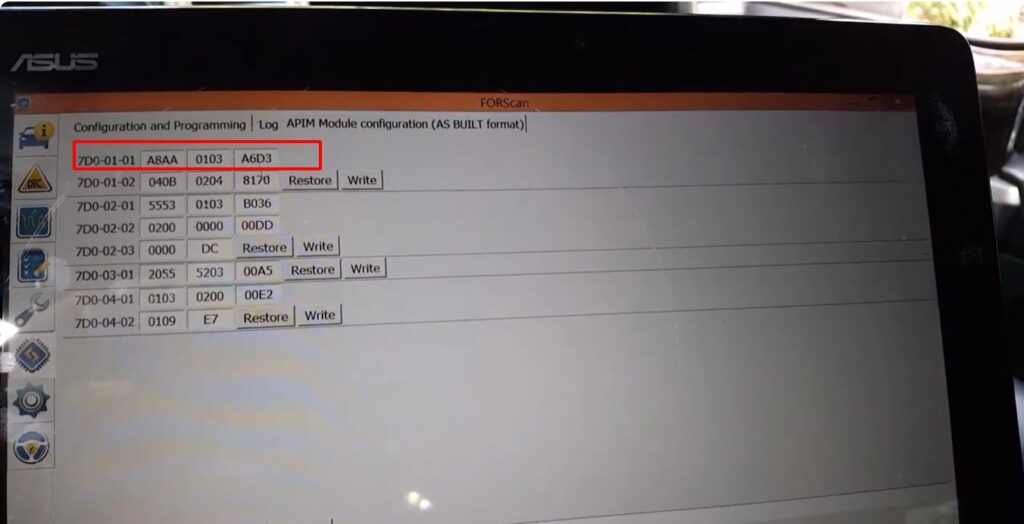
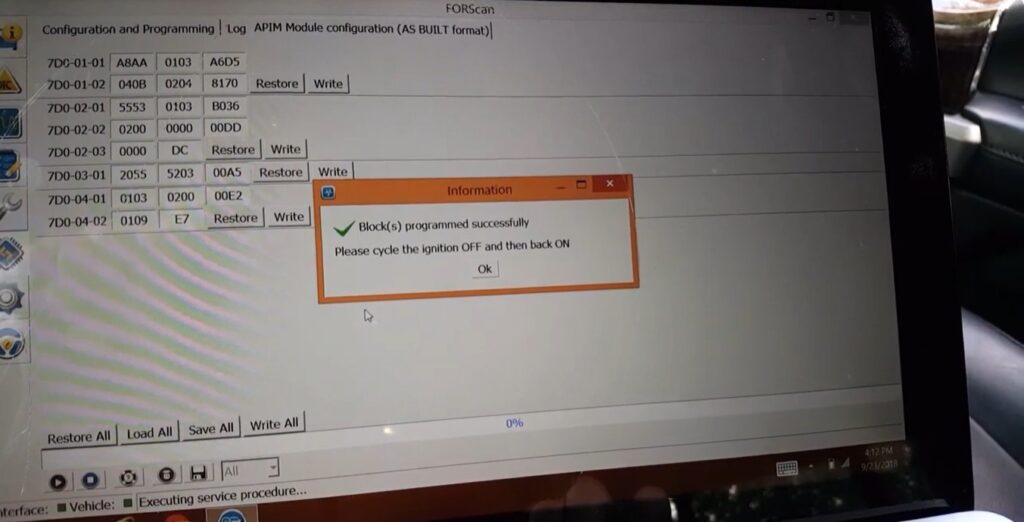
7D0-01-01 modified configuration
During the writing process, maintain stable communication with the vehicle and do not interrupt the programming operation.
After the APIM configuration has been written, check the vehicle’s home screen.
Verify whether the configured:
icons are now displayed as expected.
If the icons do not appear, review the APIM configuration and confirm that the vehicle supports the corresponding seat climate-control functions.
After the APIM configuration has been successfully modified and written, the vehicle’s home screen should display the configured Seat A/C and Seat Heat icons.
The intended workflow is:
APIM As-Built → 7D0-01-01 → Write → Check Home Screen
The actual interface and available functions may vary according to the vehicle’s equipment and software configuration.
This procedure changes the APIM configuration. Before programming, save the original APIM As-Built data so the original configuration can be referenced if restoration is required.
Do not assume that the same configuration is applicable to every vehicle.
Compatibility may depend on:
The presence of an icon does not necessarily mean that the underlying hardware or function is installed. The vehicle should have the corresponding supported equipment and module configuration for the feature to operate correctly.
Programming requirements and risks can also depend on the vehicle, module, software version, power supply, and programming interface.
It modifies the APIM configuration so that the configured Seat A/C and Seat Heat icons can be displayed on the vehicle’s home screen.
The supplied procedure modifies:
APIM – Accessory Protocol Interface Module
The supplied procedure identifies:
7D0-01-01
The exact replacement value should be taken from the applicable coding screenshot/reference.
The procedure uses the APIM As-Built Format in FORScan.
Yes. Saving the original configuration is recommended before changing the APIM As-Built data.
Not necessarily. The procedure changes the APIM interface configuration. The actual seat A/C or heating function still depends on the vehicle’s installed hardware, modules, software, and supported configuration.
Not necessarily. Compatibility depends on the specific vehicle and its APIM, software, hardware, and seat configuration.
First verify that the APIM write operation completed successfully. Then check the 7D0-01-01 configuration against the applicable coding reference and confirm that the vehicle has the required seat climate-control equipment.
The Seat A/C and Heat Icons modification provides a way to add the configured seat climate-control icons to the vehicle’s home screen through APIM As-Built coding.
The supplied procedure is straightforward:
Select APIM → Change 7D0-01-01 → Write → Check the vehicle
Because As-Built configurations are vehicle-specific, the original APIM configuration and applicable coding reference should be verified before programming.
If you need help checking compatibility, reviewing APIM As-Built configuration, or activating a supported Ford interface feature remotely, contact AutoExplain for technical guidance and remote coding support.
WhatsApp: +1 (936) 289-6695
Please provide your Ford model, model year, APIM information, and the feature you want to activate so the technical team can assess the request.