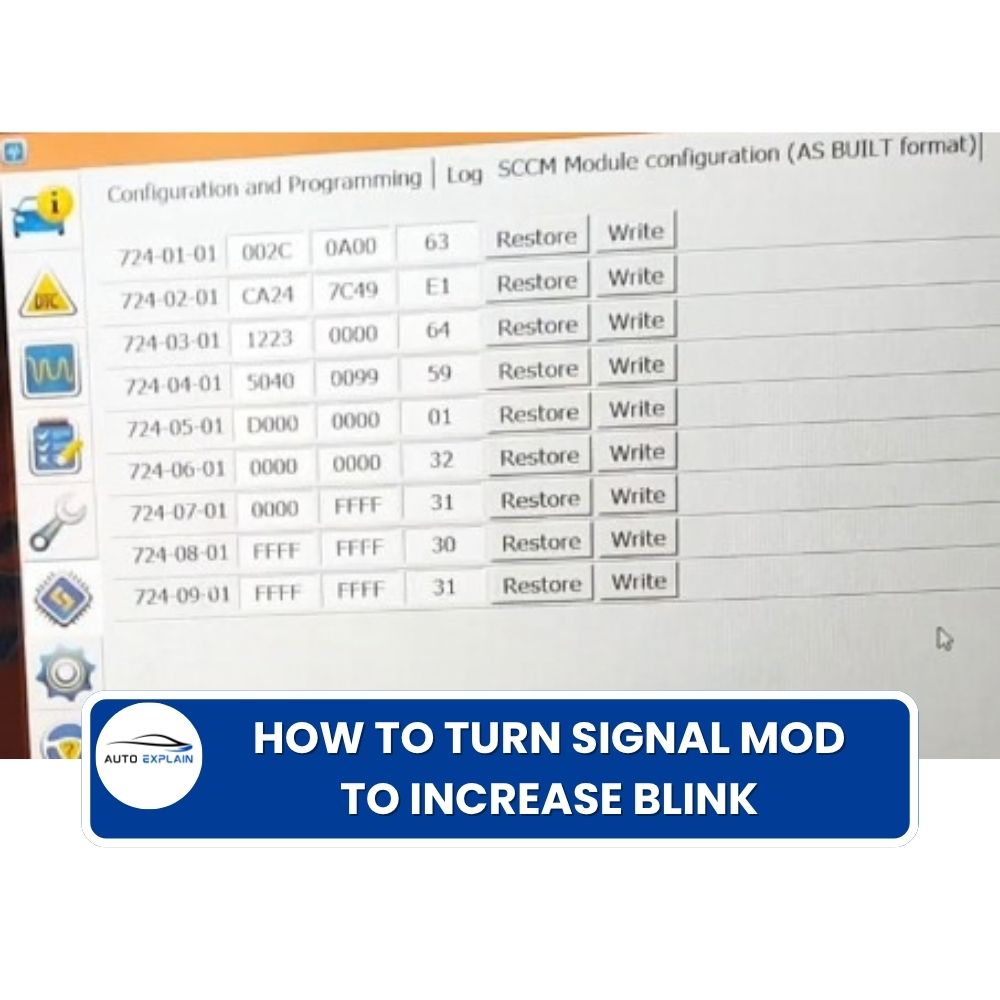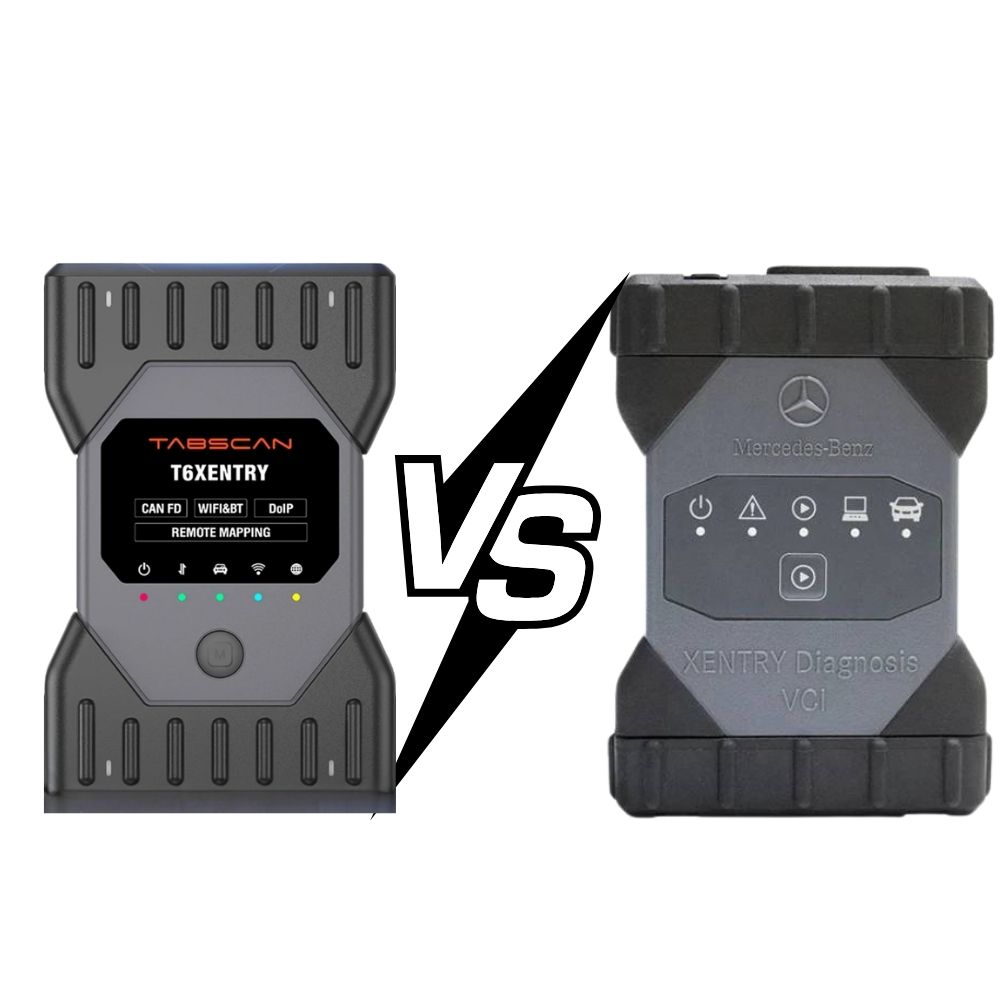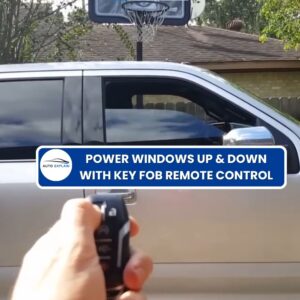

The Power Windows Up & Down With Key Fob Remote Control modification adds a convenience function that allows the vehicle’s power windows to be controlled using the key fob remote.
After the feature is successfully configured, the remote can be used to operate the vehicle’s windows up or down according to the supported vehicle configuration.
This procedure uses FORScan and requires configuration changes in three modules:
The procedure uses As-Built Format configuration.
The modification adds a remote-control function for the power windows.
Function
| Feature | Description |
|---|---|
| Power windows remote control | Allows the windows to be operated using the key fob remote |
| Configuration method | As-Built Format |
| Main modules | BdyCM, DDM and PDM |
| Diagnostic software | FORScan |
The exact availability of this function can depend on the vehicle model, model year, module configuration, software version, and installed equipment. AutoExplain’s technical standards recommend checking compatibility against the specific vehicle and module rather than assuming universal support.
Before starting the procedure, prepare:
Because this procedure modifies multiple vehicle modules, it is important to save the original As-Built configuration before making changes.
The general workflow is:
Identify → Save/Backup → Modify → Write → Verify
This approach helps preserve the original configuration and provides a reference if the changes need to be restored.
Connect the VCI to the vehicle and laptop, then establish communication with the vehicle using FORScan.
After the vehicle is identified, open:
Configuration and Programming
Locate the:
BdyCM – Body Control Module
Select the As-Built Format configuration.
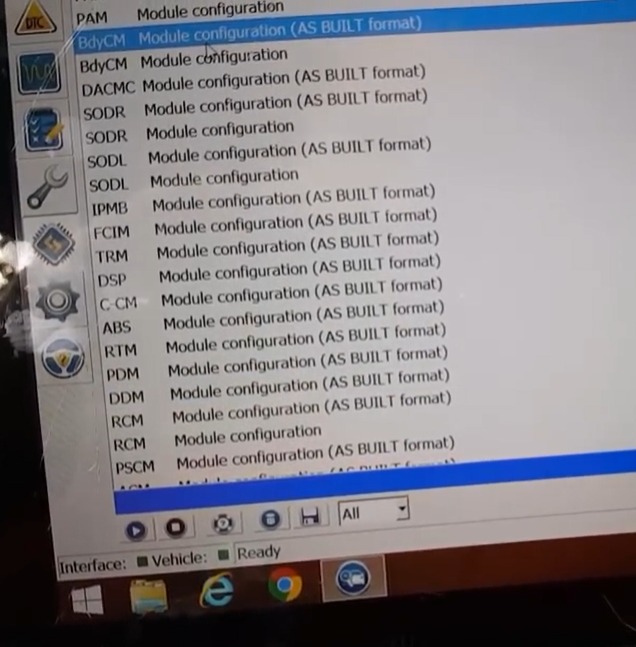
Configuration and Programming menu
Before changing any values, save the original BdyCM As-Built configuration.
This backup provides a reference for the original vehicle configuration.
Record or save the original values before proceeding to the next step.
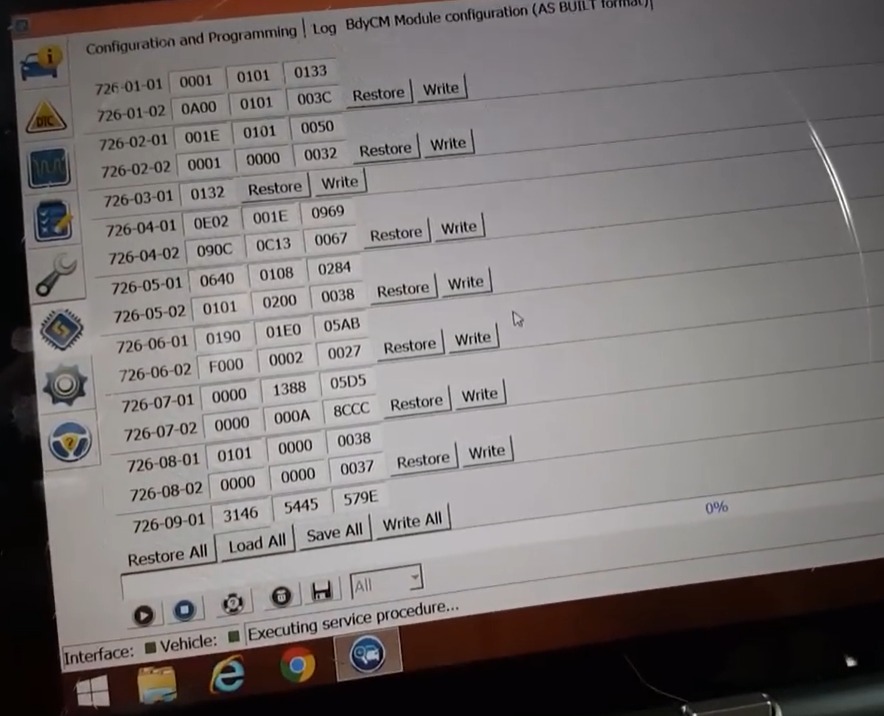
Save BdyCM As-Built configuration.
Why Should You Save the Original Configuration?
As-Built data is vehicle-specific configuration information. Saving the original values helps you compare the configuration before and after coding and provides the original data for restoration if required.
In the BdyCM As-Built configuration, modify the following addresses:
Use the values specified by the applicable coding procedure.
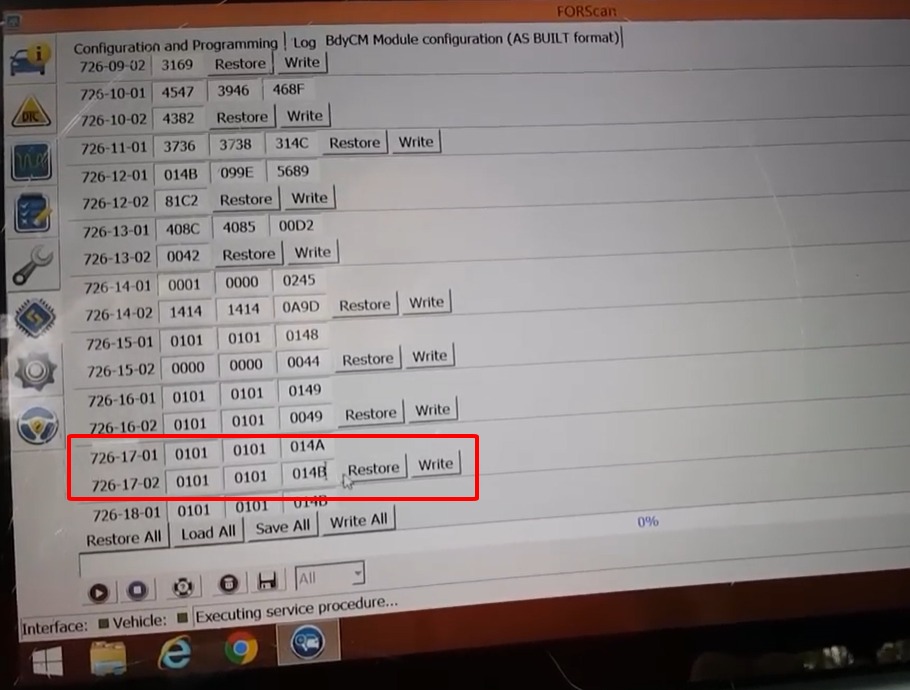
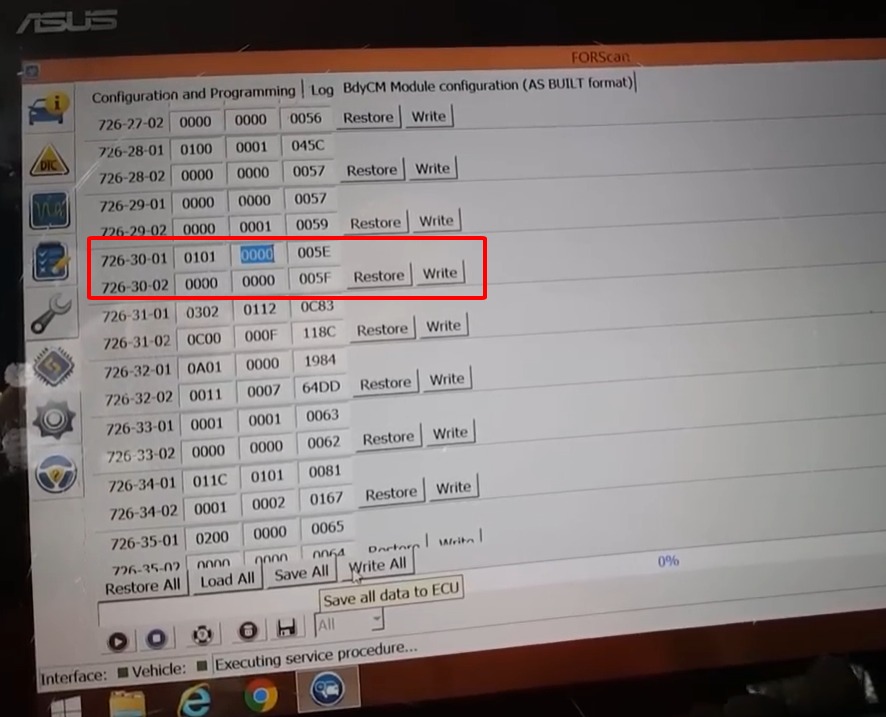
726-17-01, 726-17-02, 726-30-01 configuration.
After the required BdyCM values have been changed, write the configuration to the BdyCM.
Use FORScan’s write/program function and wait until the operation is completed.
Do not interrupt communication between the vehicle and VCI while the configuration is being written.
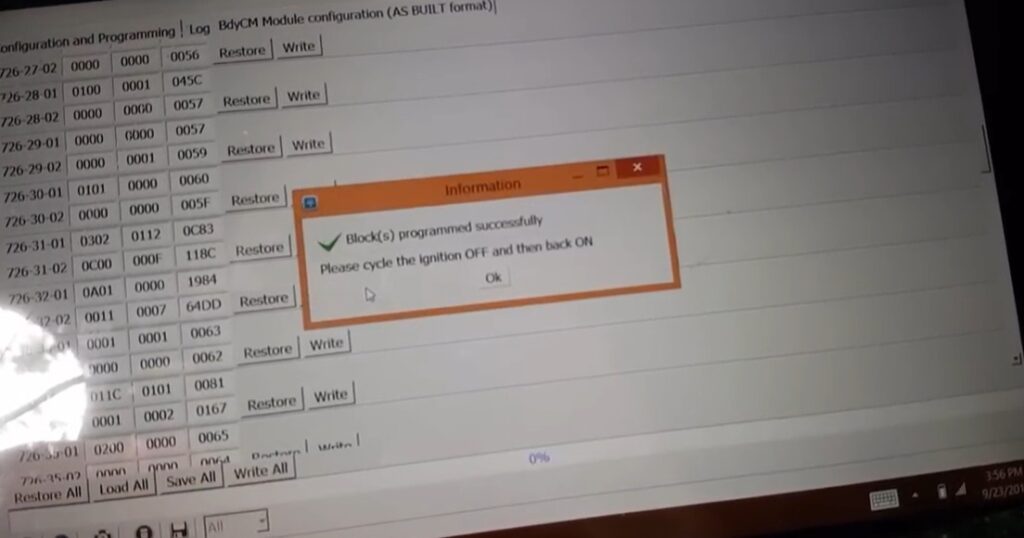
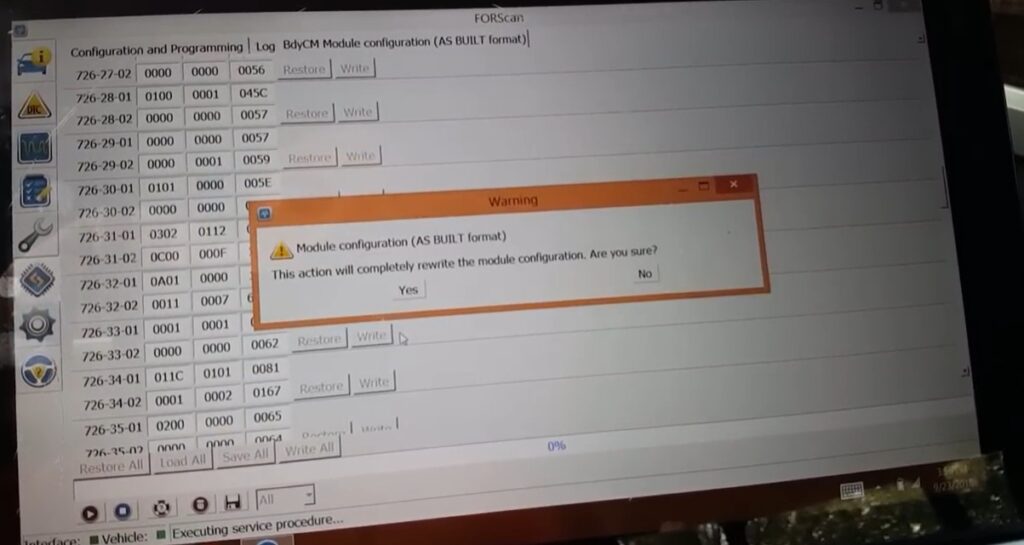
Write all BdyCM configuration.
After the BdyCM writing process is completed, continue with the driver door module.
Return to the module configuration list and select:
DDM – Driver Door Module
Open the:
As-Built Format
configuration.
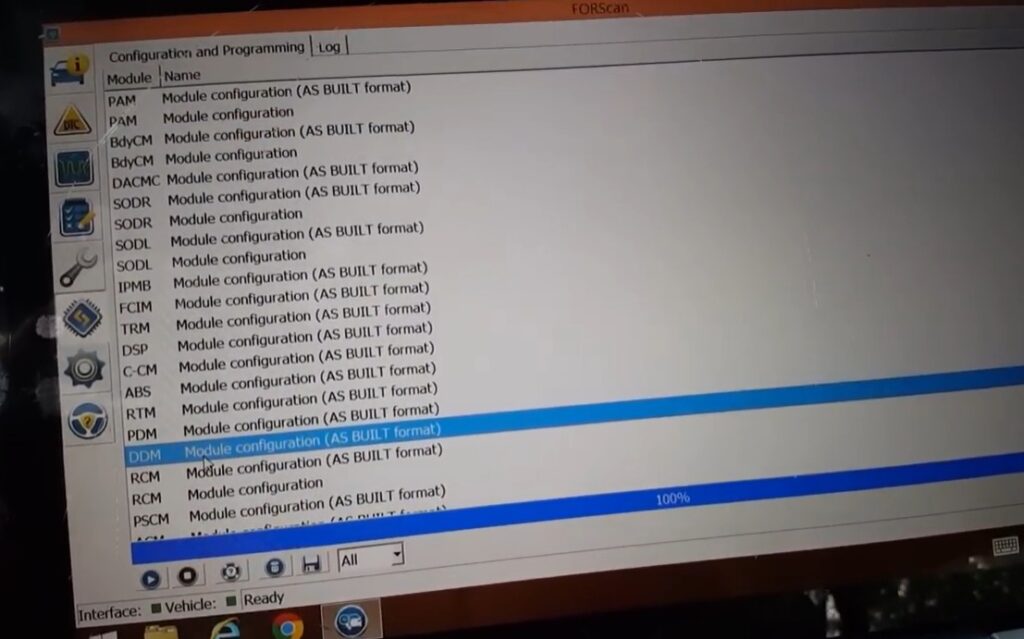
DDM As-Built Format
The DDM configuration is required because the power-window function involves the driver’s door control system.
Before modifying DDM, save the original As-Built configuration.
Keep the original values available for reference.
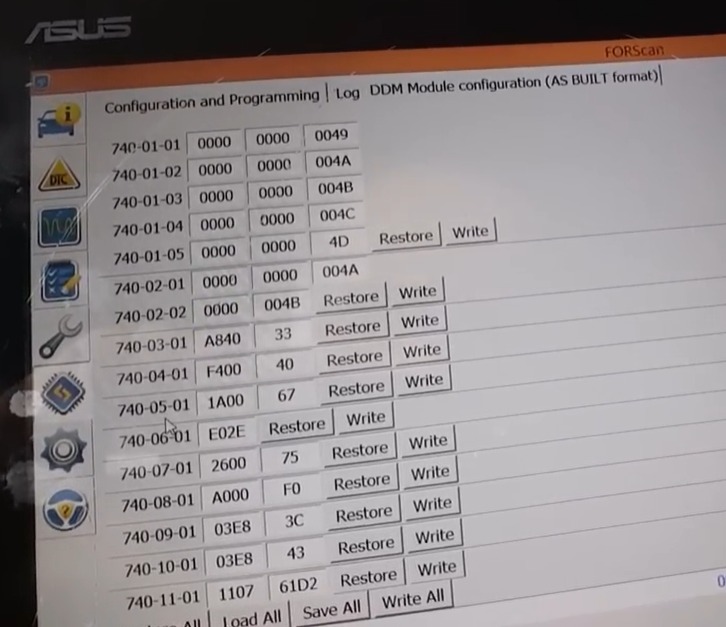
Save DDM As-Built configuration.
This creates a separate backup/reference for the DDM configuration.
Locate:
740-05-01
Change the configuration value according to the supplied coding reference.
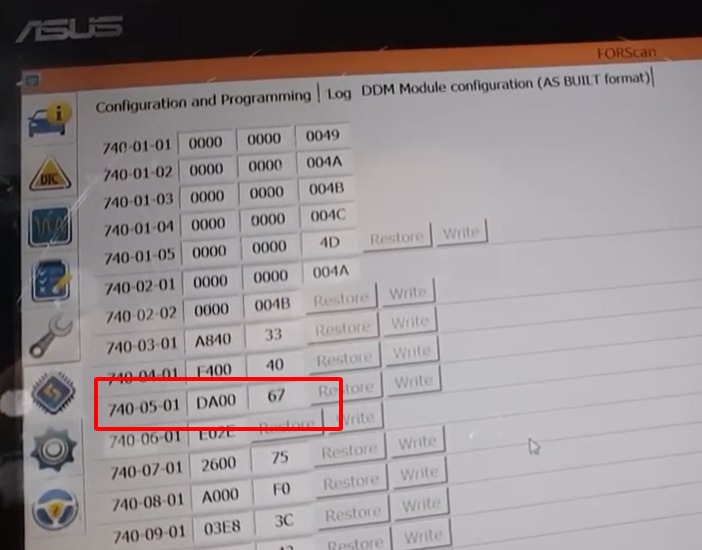
740-05-01 configuration
After changing 740-05-01, write the configuration to the DDM.
Wait until FORScan confirms that the configuration operation has been completed.
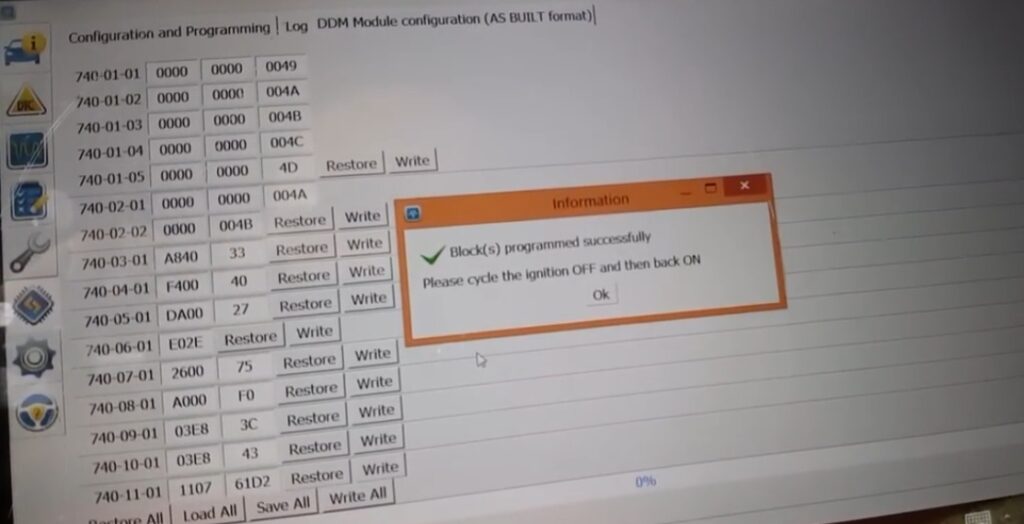
Write DDM configuration
Return to the module list and select:
PDM – Passenger Door Module
Open:
As-Built Format
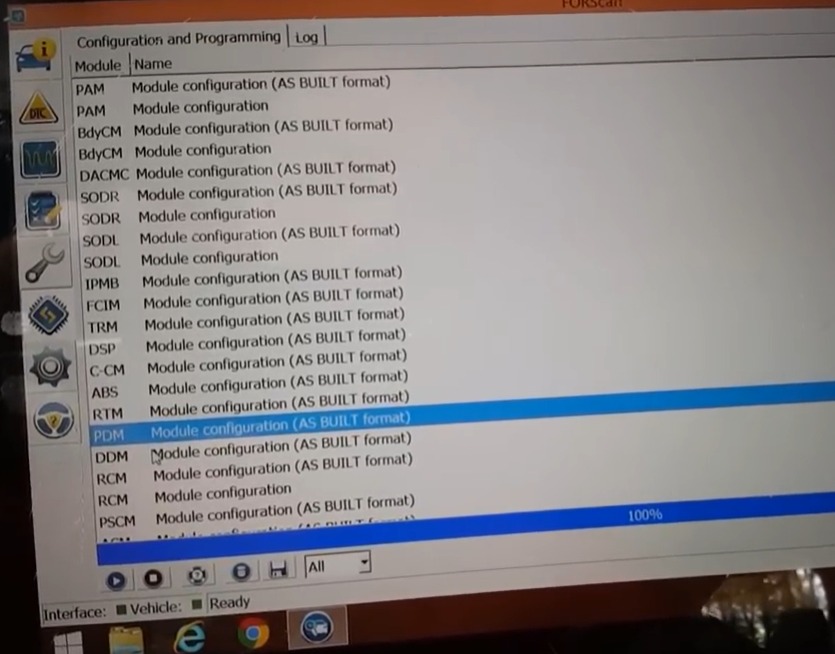
PDM As-Built Format
The PDM configuration is included because the passenger-side door control system is part of the power-window configuration.
Before making any changes, save the original PDM As-Built configuration.
Keep this information as the original reference.
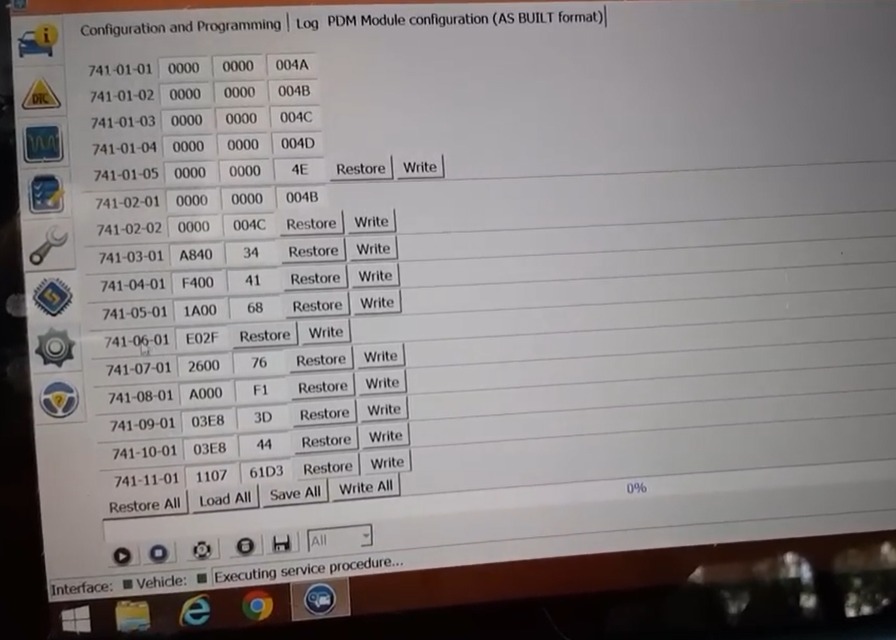
Save PDM As-Built configuration
Locate:
741-05-01
Change the value according to the supplied coding reference.
Then write the new configuration to the PDM.
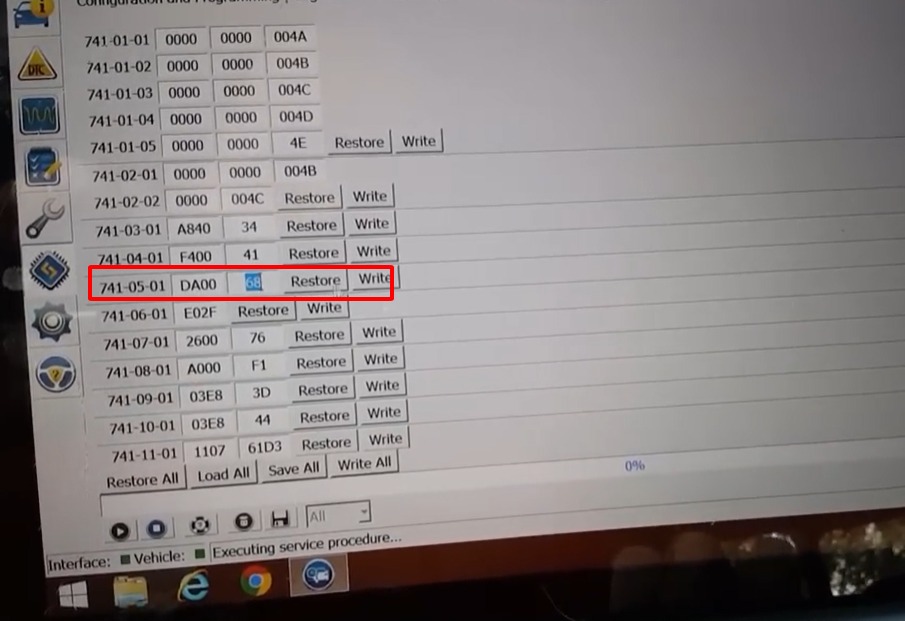
741-05-01 configuration
After the BdyCM, DDM and PDM configurations have been written:
Test the key fob and check whether the power windows respond to the remote-control operation.
Verify both the expected remote window operation and normal operation from the vehicle’s window switches.
If the function does not operate as expected, review:
After the BdyCM, DDM and PDM configurations have been correctly modified and the ignition has been cycled, the vehicle should support the configured Power Windows Up & Down With Key Fob Remote Control function.
The intended feature is:
Key fob remote → Power window operation
The actual available behavior can depend on the vehicle configuration and supported module/software combination.
This procedure modifies multiple body-control and door-control modules. For that reason, backing up the original As-Built configuration before coding is an important part of the workflow.
Do not assume that the same configuration is applicable to every Ford vehicle.
Compatibility may vary according to:
AutoExplain’s technical content standard recommends clearly separating general technical guidance from vehicle-specific procedures and avoiding universal compatibility claims.
Programming requirements and risks can also depend on the vehicle, module, software version, power supply, and programming interface.
It adds a convenience function that allows the vehicle’s power windows to be controlled using the key fob remote.
The supplied procedure modifies three modules:
The procedure uses As-Built Format in FORScan.
Saving the original configuration provides a reference for the vehicle’s initial settings and can help restore the original configuration if required.
The supplied procedure identifies:
The replacement values should be taken from the corresponding coding reference.
The supplied procedure identifies:
740-05-01
The exact replacement value should be taken from the original coding reference.
The supplied procedure identifies:
741-05-01
The exact replacement value should be taken from the original coding reference.
Yes. The supplied procedure specifies turning the ignition off and on again after the module coding has been completed, followed by checking the function.
Not necessarily. Coding availability depends on the vehicle, module, hardware, software and configuration. The procedure should be verified against the specific vehicle before making changes.
AutoExplain provides remote technical support for supported coding, programming, diagnostic and hidden-feature tasks. Service availability depends on the vehicle, module, software, hardware, service type and remote connection conditions.
The Power Windows Up & Down With Key Fob Remote Control modification adds a convenient remote-control function for the vehicle’s power windows. The supplied procedure uses FORScan As-Built Format and requires configuration changes in BdyCM, DDM and PDM.
The workflow is to save the original configuration, modify the specified As-Built addresses, write each module, cycle the ignition, and then verify the power-window remote function.
Because the coding values are vehicle-specific, the original configuration and applicable coding reference should be verified before programming.
If you need help checking compatibility, reviewing As-Built configuration, or activating a supported Ford hidden feature remotely, contact AutoExplain for technical guidance and remote coding support.
WhatsApp: +1 (936) 289-6695
Please provide your Ford model, model year, module information, and the feature you want to activate so the technical team can assess the request.