
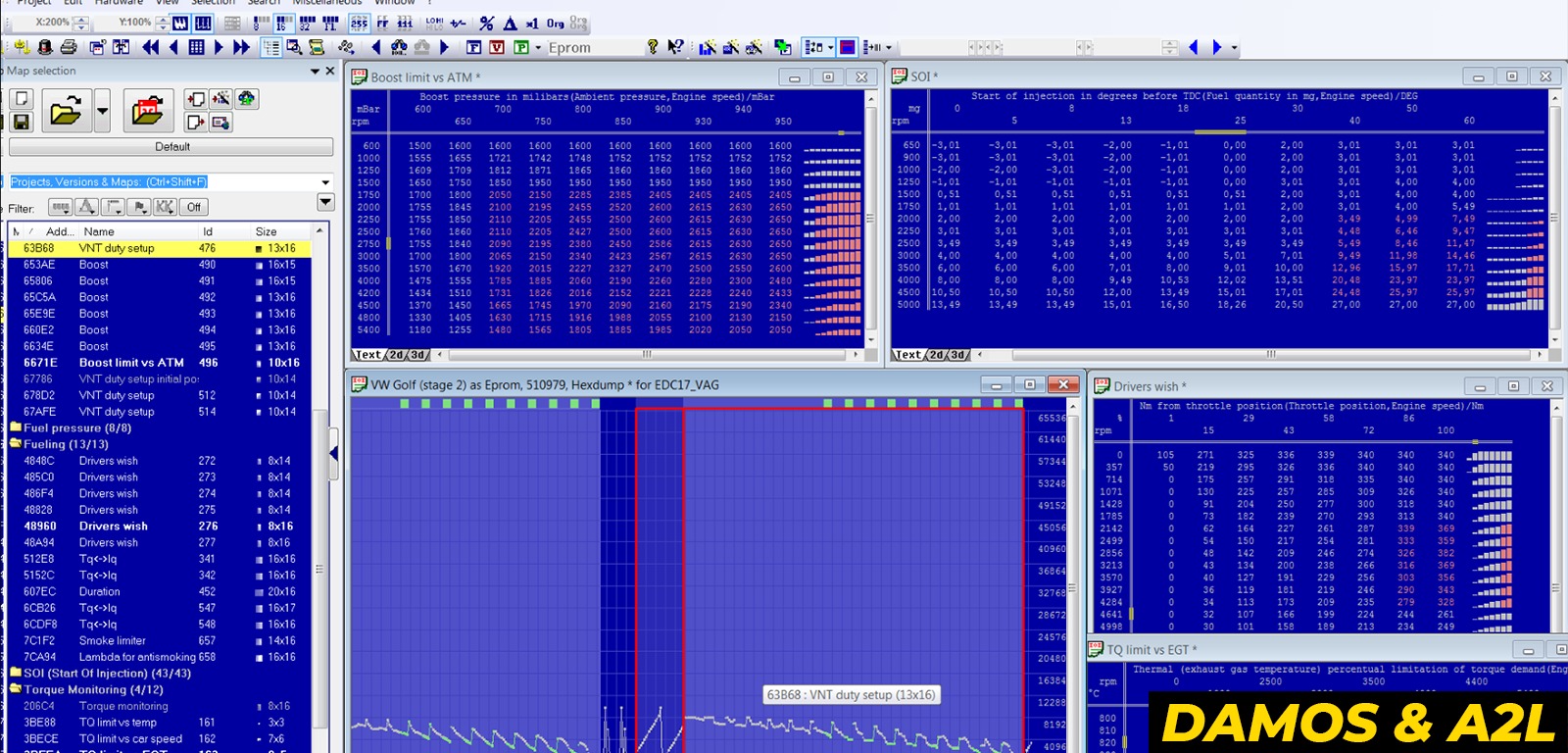
When working with WinOLS, DAMOS files play a crucial role in identifying maps, axes, and calibration parameters inside an ECU file. Instead of manually searching through raw hex data, DAMOS provides structured map descriptions that make file analysis more precise and organized.
However, using DAMOS correctly requires more than simply loading a file into the project. Understanding how it matches software versions, how map addresses are defined, and how to verify data accuracy is essential for professional ECU tuning. This article explains how to use DAMOS files in WinOLS, how to integrate them properly into your workflow, and what limitations you should be aware of when working with engineering description data.
A DAMOS file is an engineering description file that contains structured information about an ECU’s internal data layout. It provides detailed metadata that explains how calibration data is organized within the binary file.
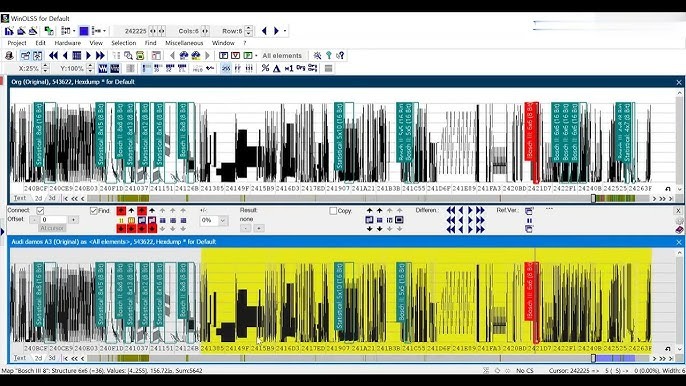
In practice, a DAMOS file may include:
When imported into WinOLS, a DAMOS file translates raw hexadecimal data into clearly defined maps and calibration parameters. This significantly reduces manual map searching and improves accuracy during ECU file analysis. However, it is important to understand that DAMOS serves as a reference structure—it does not replace the need for technical knowledge of engine management logic.
Using DAMOS files in WinOLS significantly improves the accuracy and efficiency of ECU file analysis. Instead of manually searching for maps within raw hexadecimal data, a DAMOS file provides structured calibration information directly linked to defined memory locations.
Key advantages include:
However, DAMOS files are not automatic tuning solutions. They provide structure and reference data, but proper interpretation still depends on the tuner’s understanding of engine management strategies and calibration logic.
Using a DAMOS file in WinOLS allows you to transform raw binary data into structured, readable calibration maps. However, correct usage requires a systematic workflow to ensure proper alignment and verification.
Below is a practical step-by-step process used in professional ECU tuning environments.
Start by creating a new project in WinOLS and import the original ECU binary file (.bin / .ori / full read).
It is strongly recommended to:
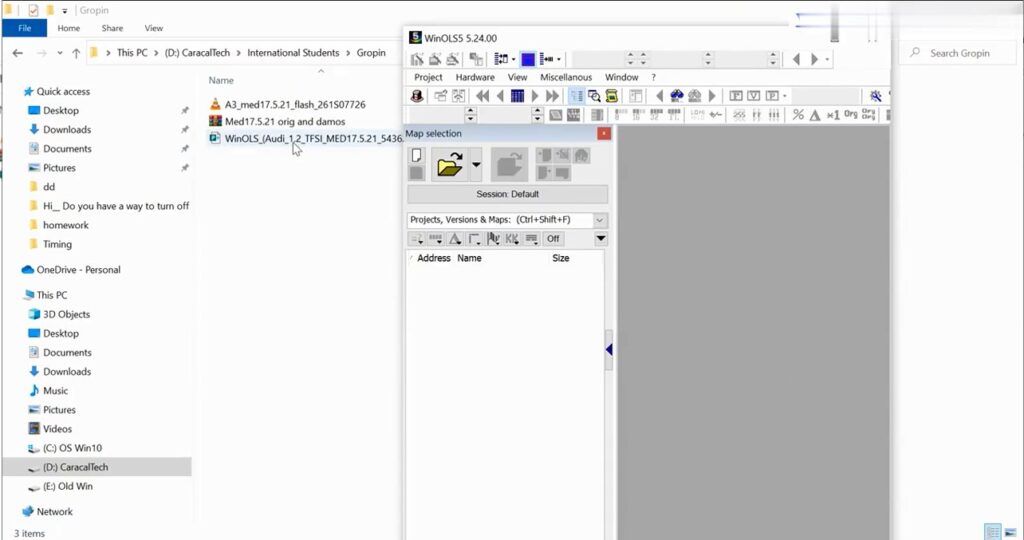
Once the project is open:
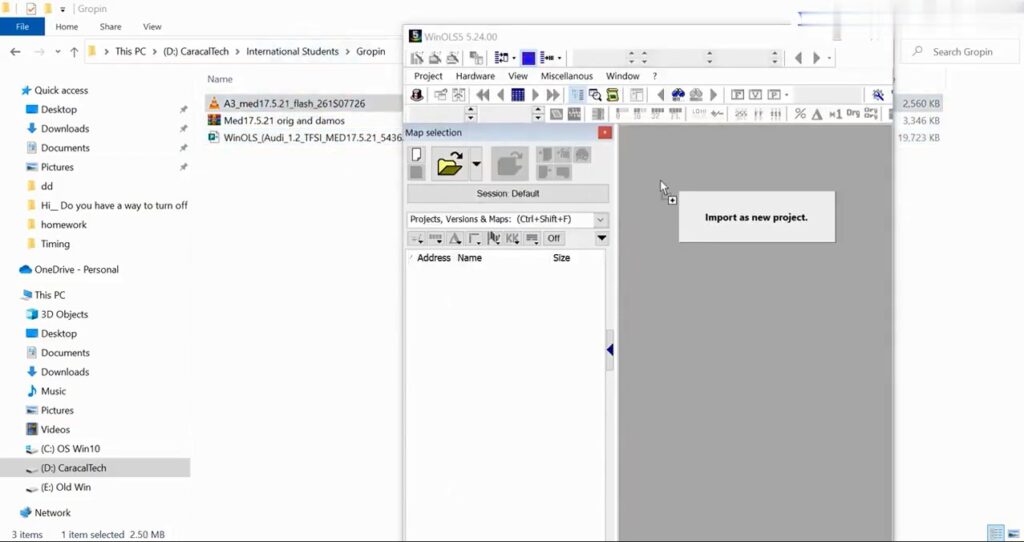
If the software version matches correctly, WinOLS will automatically assign:
If the version does not match, you may see incorrect addresses or missing maps.
After importing, do not assume everything is correct.
Professionally, you should verify:
Even a small software offset can cause incorrect mapping.
Once verified, organize maps into logical groups such as:
Using WinOLS filters and search functions helps isolate relevant calibration areas quickly.
Before modifying any values:
DAMOS provides structure—but interpretation still depends on technical knowledge.
When editing maps:
Professional workflows always include data logging and validation after flashing.
Important Considerations
When used correctly, DAMOS significantly improves efficiency, precision, and workflow clarity inside WinOLS—especially on complex ECUs such as EDC17, MED17, MG1, or MD1 platforms.
DAMOS files are powerful engineering description tools that can significantly improve accuracy and efficiency when working in WinOLS. They help structure raw ECU data into readable maps, defined axes, and clearly labeled calibration parameters—reducing guesswork and manual searching.
However, DAMOS is not a shortcut to safe or professional tuning. Correct software version matching, proper verification, and a solid understanding of ECU logic remain essential. When used correctly, DAMOS enhances workflow precision—but technical knowledge is still the foundation of reliable ECU calibration.
If you need support with DAMOS files, WinOLS setup, or professional ECU tuning guidance, contact AutoExplain via WhatsApp: +1 (936) 289 6695 to get assistance from our technical team.